TEACHER GUIDE
How to run a lesson
Everything on one page, about five minutes to read. Each part shows the real screen.
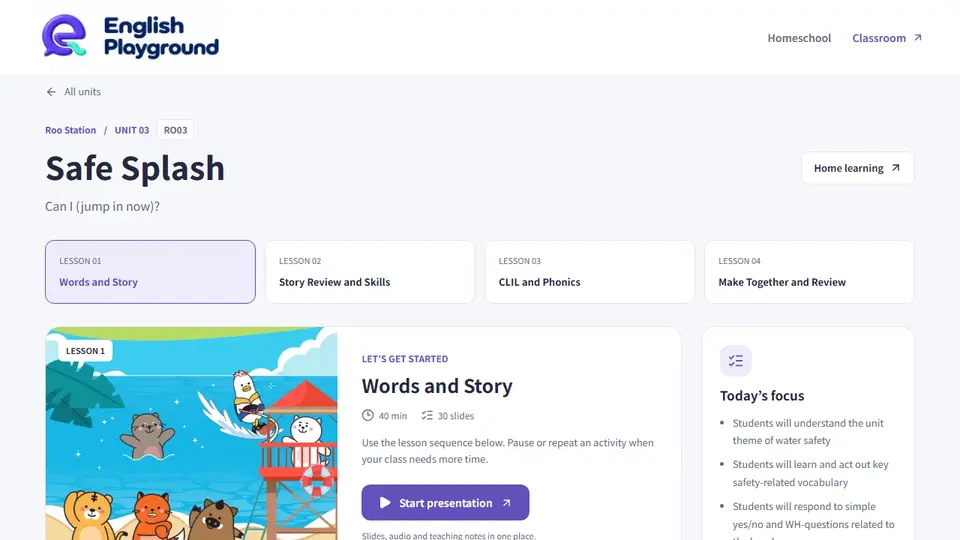
1Start a lesson
- Open Classroom and choose a unit.
- Pick Lesson 1–4. Check the goals and the activity order.
- Start the lesson timer here if you like. It keeps running on the slides.
- Press Start presentation.
2Present
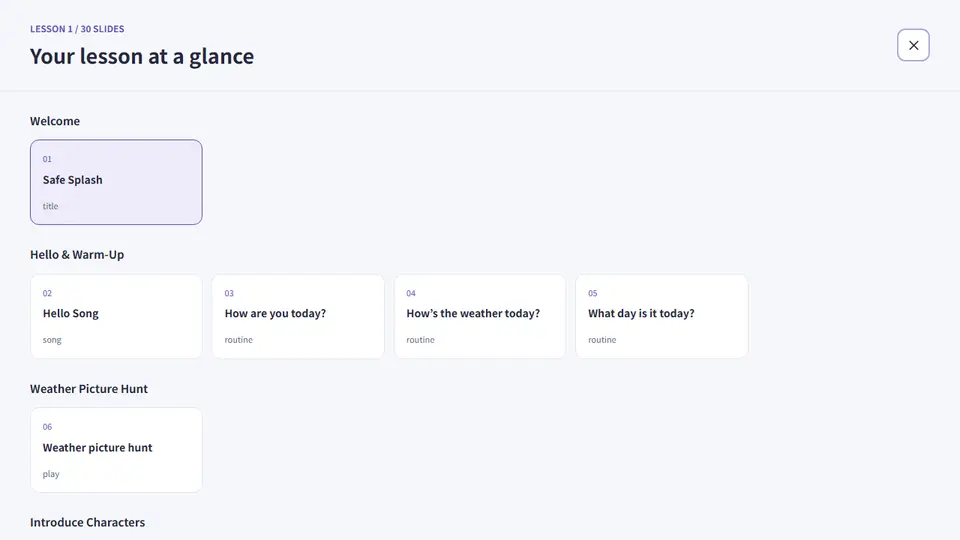
- Next / PageDown / → moves on. ← goes back. Your clicker works the same way.
- G opens the overview: jump to any part of the lesson.
- F is fullscreen. N shows your notes — they are on the wall too if your screen is mirrored.
- Student display opens a second window for the projector; notes stay on your screen.
3Hello and warm-up
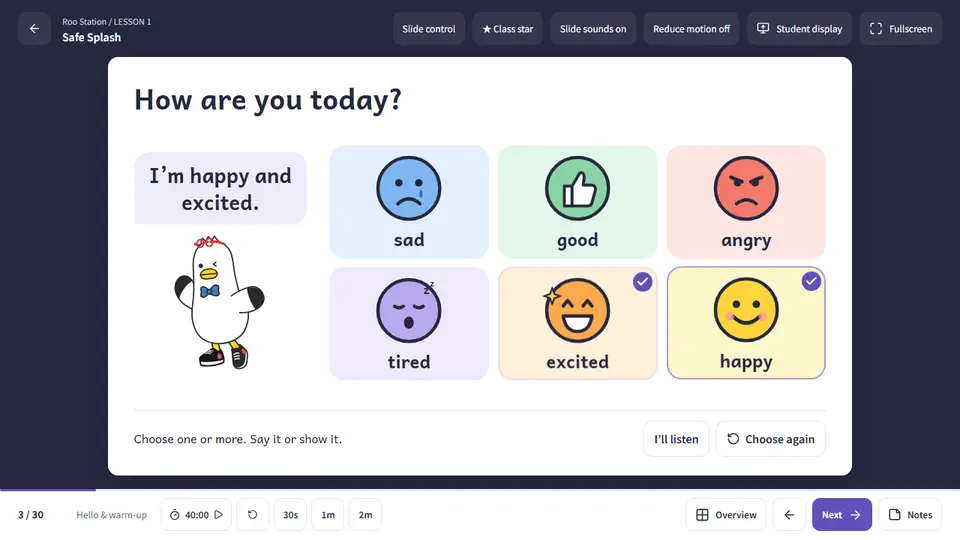
- Feelings and weather: children can choose more than one.
- The sentence fills in by itself: “I’m happy and excited.”
- Choose again clears the board for the next child.
4Mark the book
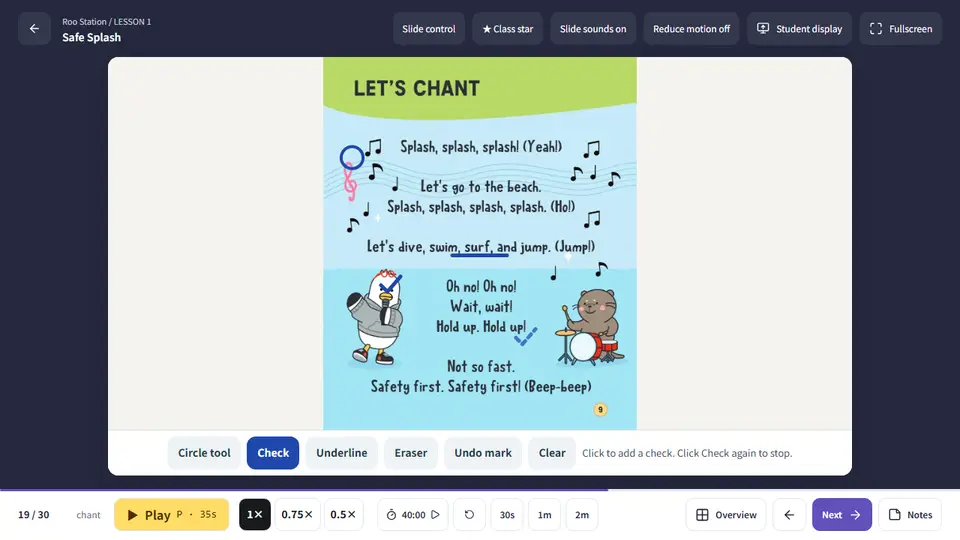
- Circle, Check and Underline: choose a tool, then click the page. A dashed preview shows where it will land.
- Eraser removes the mark you click. Undo mark and Clear are next to it.
- Click the same tool button again to put it away.
5Timers and audio
- The clock in the bottom bar is the lesson timer; ↺ resets it for the next class. 30s, 1m and 2m start an activity timer.
- In fullscreen a small timer stays in the top corner while a timer runs.
- P plays the page’s audio, R starts it again. 0.75× and 0.5× slow a chant down.
- Slide sounds plays a short chime on right answers. Turn it off in the top bar.
- ★ Class star (or S) adds a star to the class jar on the screen. The whole class collects stars together; Reset empties the jar for the next class.
6Picture peek
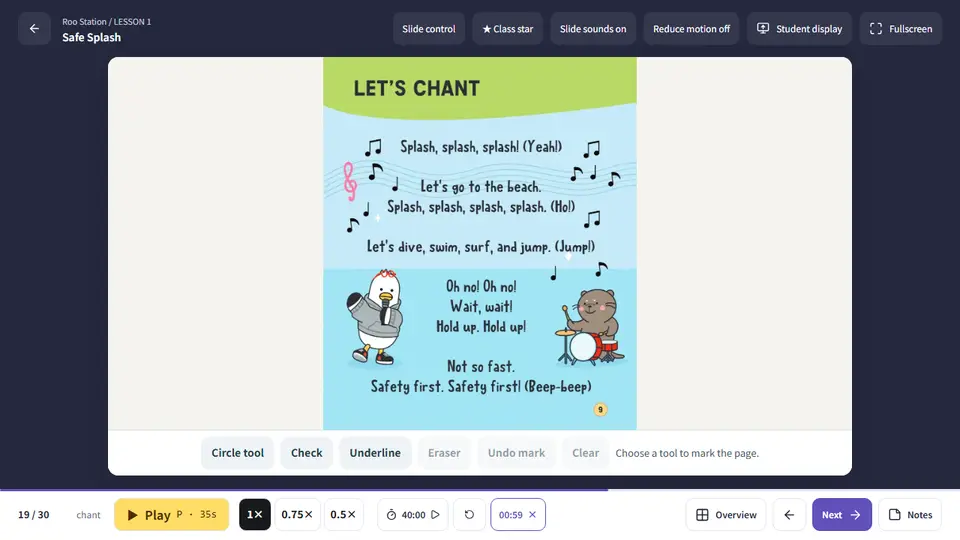
- Open a window opens the outside first and the middle last. You can also click any window.
- Let children guess, then Show word. Listen plays the word.
- Next picture moves to the next word.
7Mystery words
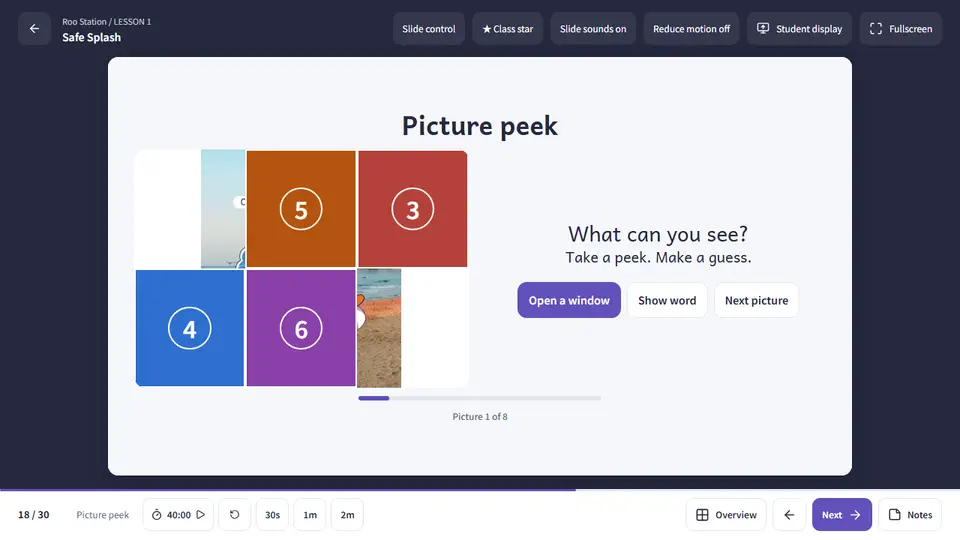
- How to play (your window only) has a gesture clue for each word.
- Act or describe the word. Children guess, then Reveal word and say it together.
- Hide and play again as often as you like. Nobody is out.
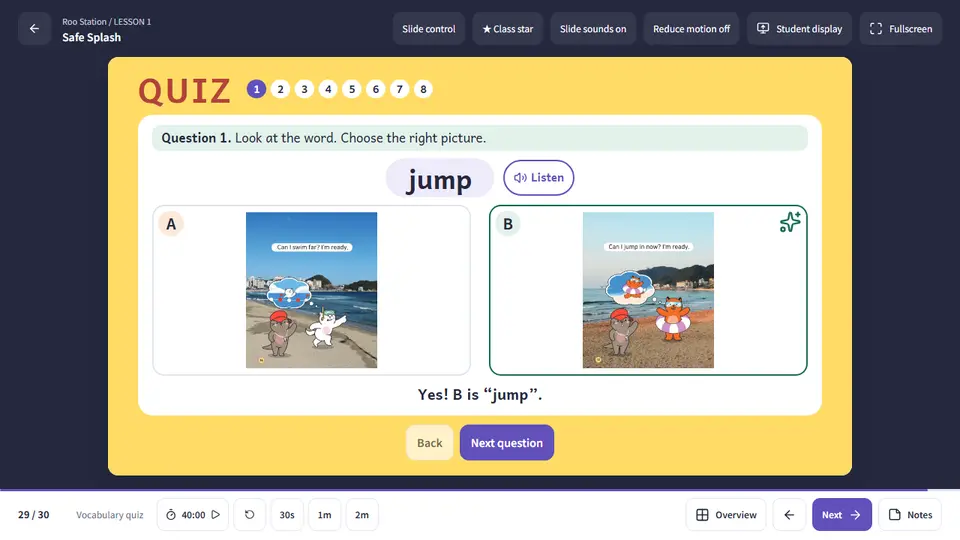
8Vocabulary quiz
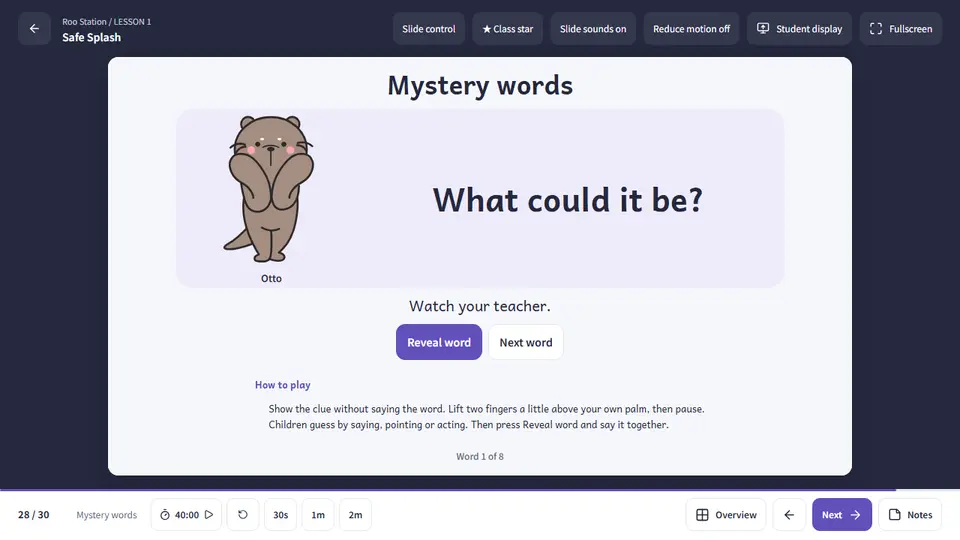
- Read the word together. Children point to A or B.
- A wrong pick is a clue: “Look again.” The answer moves between A and B.
- Next question goes on; the circles at the top show where you are.
Keys
- → · PageDown · Space
- Next slide
- ← · PageUp
- Previous slide
- G
- Overview
- N
- Notes
- F
- Fullscreen
- P · R
- Play / replay audio
- Enter
- Next step in a game
- Esc
- Close the overview
- S
- Add a class star